
Email to Slack
Send incoming emails to Slack as images with Zapier.
In this guide, we will learn how to post screenshots of emails into Slack. It’s super simple with using Zapier + the HTML/CSS to Image integration.

Sharing a full image of the email makes it possible to show things like charts or graphs with your team. Adding a nice visual to every message.
How it works
Section titled “How it works”We’ll be accomplishing this with 3 steps.
- Listen for inbound emails to Zapier.
- Create an image from the email using HTML/CSS to Image.
- Post that image into a Slack channel.

Step by step guide
Section titled “Step by step guide”1. First, you’ll need to create a new Zap and use the “Email” trigger. This will allow you to send an email to a special address and it will instantly trigger the Zap to start.

2. Once that is setup, give it a try by sending a test email to your new address. After a few moments, you should see your email in Zapier.

3. Next, you’ll want to generate an image of the email. For that you can use the HTML/CSS to Image plugin. This is how we’ll convert our email into an image.

4. For authentication, you’ll need to grab your API key details from the dashboard. The free account will allow you 50 screenshots per month.
5. Next, you’ll use the “Create image” action. See the screenshot for how to set it up.
- Set HTML to the
Body HTMLfrom your email.

6. Give that a test, you’ll get back a URL to your image. This is the image you’ll then be able to share in Slack.
7. Next, you’ll need to connect the Zap to Slack. Use the Slack plugin and connect your account.

8. Choose the “Send Channel Message” action and start configuring it. The key here is setting the “Attach image by url” field to the URL returned to you by HTML/CSS to Image.

9. Now you can give it a test run. The message, with your test email should get posted into Slack. Save your Zap and test it for real by sending another email to your address.
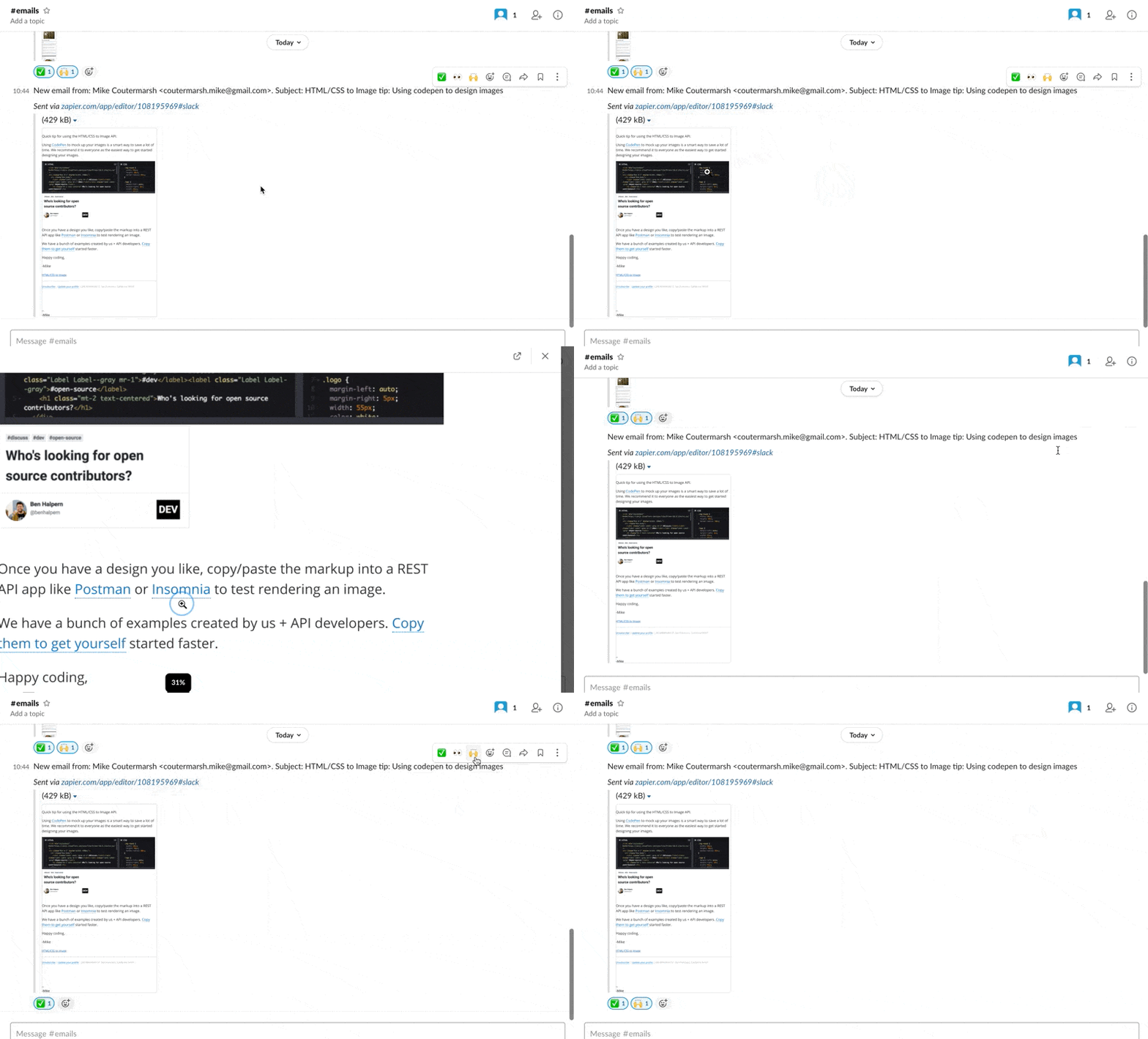
That’s it!
Section titled “That’s it!”Now each time an email is sent to the Zapier address, it will quickly appear in your Slack channel as an image.
You can customize this further by pulling emails from different sources. Such as from gmail directly if you’d like. You can also do things like include the text of the email in the message so that people can copy and paste it, or click any links.
Need help?
Talk to a human. Email support@htmlcsstoimage.com and we’ll help you get started.